Why Calendar Apps Matter
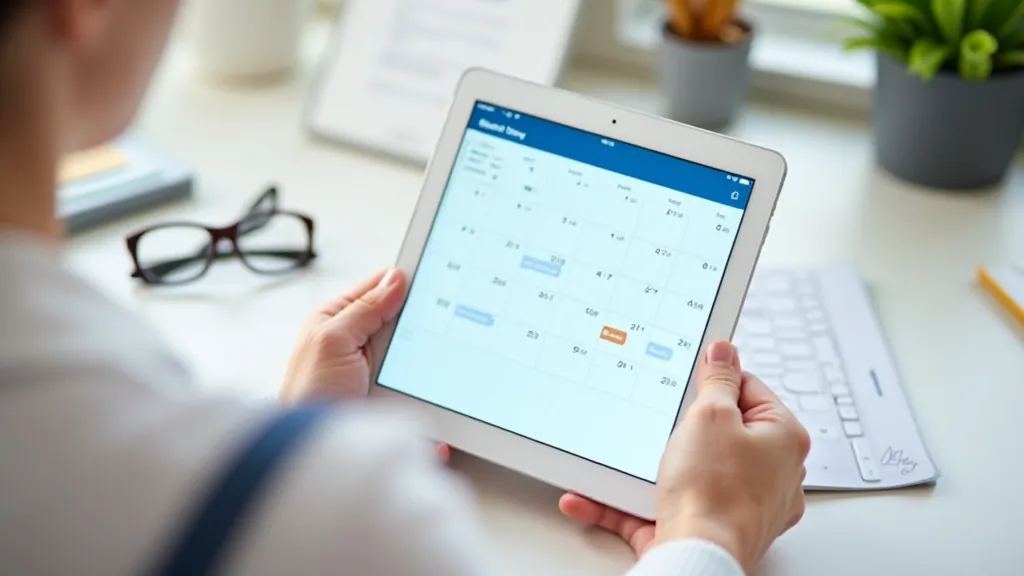
Your calendar is like having a personal assistant in your pocket. It's not just about remembering birthdays — it's about managing your health appointments, social activities, and daily tasks all in one place. The best part? Once you set it up, your phone or tablet does the remembering for you.
We'll walk you through the most popular calendar apps that work beautifully on older devices. You don't need anything fancy. You need something reliable, easy to read, and simple to use. That's exactly what we're going to help you find.
Choosing Your Calendar App
There's no single "best" calendar app — it depends on what you're using. If you've got an iPhone or iPad, Apple Calendar is built right in. For Android phones and tablets, Google Calendar is the standard choice. Both are completely free and they work really well.
The advantage of using these built-in apps? They're already on your device. You don't need to download anything or create new accounts. Just open the app and you're ready to go.
Quick Comparison
- Apple Calendar: iPhone, iPad, Mac users. Syncs with your Apple account
- Google Calendar: Android phones, tablets, Chromebooks. Syncs with Gmail
- Outlook Calendar: Works on all devices. Good if you use Microsoft services
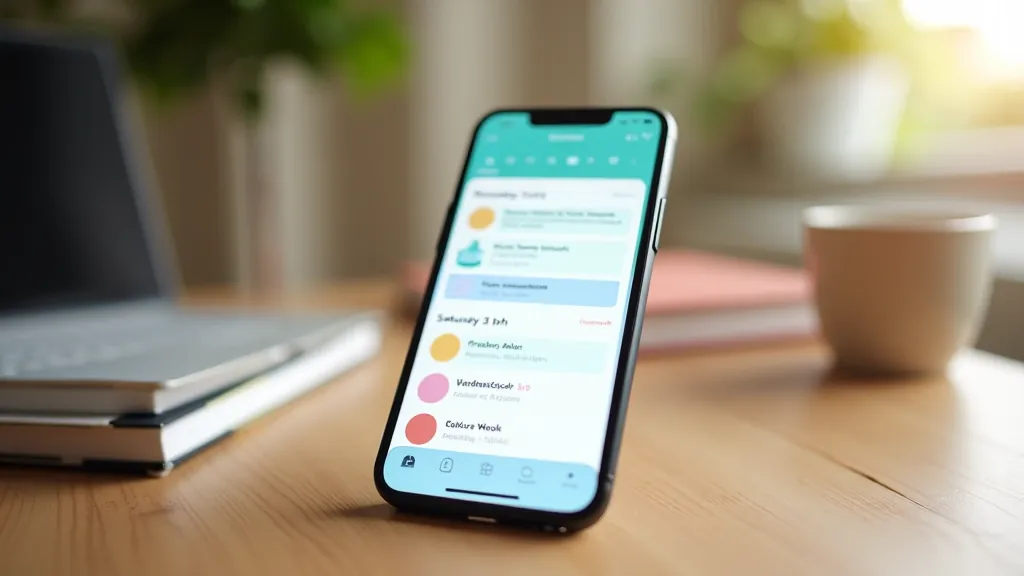
Setting Up Your First Calendar Event
Open Your Calendar App
Find the calendar icon on your home screen. It usually looks like a grid with numbered squares. Tap it once to open the app.
Tap the Plus Sign or "Add Event"
Look for a plus sign (+) button, usually in the corner. Some apps say "Create" or "New Event." Tap it to start adding your appointment.
Enter the Details
Type in what you need to remember — your doctor's appointment on Tuesday at 2 PM, or your grandson's birthday. Be specific. Include the time and location if you can.
Set a Reminder
Choose when you want to be reminded — 30 minutes before, the day before, or even a week ahead. You'll get a notification on your phone or tablet so you won't forget.
Save It
Tap "Save," "Done," or "Confirm." That's it. Your event is now in your calendar and you'll get reminded at the right time.
Keeping Your Calendar Private
Your calendar is personal information. Most apps keep it private by default, but it's worth checking your settings. You can choose whether to share calendars with family members or keep everything just for yourself. When you're setting up your account, take a moment to review the privacy options.
Smart Reminders That Actually Help
The reminder feature is where calendars really shine. You're not just writing things down — you're getting notifications when you need them. Here's how to make them work for you.
For doctor's appointments, set a reminder at least 24 hours ahead. That gives you time to arrange transport or ask a family member to come along. For medications, you can set daily reminders at the exact time you need to take them. Many apps let you set multiple reminders for the same event — so you could get one reminder the night before and another in the morning.
Birthday reminders work best when you set them to remind you a week or two in advance. That way you've got time to buy a card or plan something nice without it catching you by surprise.
Five Tips to Get the Most Out of Your Calendar
Use Colors
Assign different colors to different types of events. Medical appointments in blue, social events in green, family birthdays in red. Your brain processes color faster than text.
Multiple Reminders
Don't settle for one reminder. Set them for a week before, the day before, and the morning of. It's better to be reminded twice than to miss something important.
Add Locations
When you add where you're going, your calendar can give you travel reminders. "Leave in 15 minutes to get to your appointment" is incredibly helpful.
Share With Family
You can share your calendar with family members so they know when you've got appointments. It's optional, but it helps them support you.
Keep It Synced
Make sure your calendar is synced to your account. That way, if you use multiple devices, your events appear on all of them.
Find Old Events
Your calendar is a record. You can scroll back months to find when you had an appointment or what you were doing on a specific date. It's like having a diary.
Real Examples That Work
Managing Health Appointments
Catherine in Salthill sets up her eye doctor appointment for the first Tuesday of each month. She creates a reminder for 2 days before, which gives her time to sort out a lift with her neighbor. The app also shows her the doctor's address, so she knows exactly where she's going.
Never Missing a Birthday
Michael uses his calendar for family birthdays and anniversaries. He sets them to repeat every year, and gets reminded two weeks ahead. This gives him time to organize something special without the stress of remembering dates.
Tracking Medication
Anne sets daily reminders for her medications — one at 8 AM with her breakfast, one at 6 PM with dinner. The notifications pop up on her phone, and she checks them off when she's taken her pills. It's become part of her routine.

You're Ready to Get Started
Setting up a calendar might feel like a small thing, but it actually gives you back time and peace of mind. You won't spend mental energy trying to remember when things are. Your phone or tablet will remember for you.
Start with just one event — maybe your next appointment. See how the reminder works. Once you've done that, you'll feel confident adding more. Most people wonder why they didn't do this years ago.
If you get stuck at any point, that's completely normal. The first time feels a bit strange, but it gets easier. And remember, you're not alone — thousands of people are using calendar apps every day to keep their lives organized.